ai agent workflow to deep dive a new topic
Table of Contents
I have finally found a way to use an ai agent to teach me a new topic. When I first started using ai with chatgpt + gpt-3, one of the first things I thought of was, “this could teach me anything!” but in reality, I have tried numerous times the past few years to use it as a teacher and didn’t have success. I finally found a way to make it succeed and I want to share it because I think it’s pretty cool.
Important to note, I have had the most success with this workflow when I want to deep dive a specific topic in a subject matter that I’m already familiar with. So for example, I’m already a software engineer, but I want to learn more about a specific framework or a specific tool. You may be able to teach yourself a brand new subject from scratch, but I haven’t tried it.
Just as a teaser, here is something that an ai agent and I created together to teach myself about SwiftUI list animations. I’ll include another document later on as my favorite thing we made together 😉.
Let’s get into it.
Get started #
To get started, you need:
- an ai agent that can modify a file on your computer. I am using opencode + claude sonnet 4.6. I have also used gpt-5-mini with success.
- Obsidian (you can use a different program as long as you find an agent skill for it)
- install these agent skills to teach the agent Obsidian’s specific syntax and features.
- enable the Obsidian cli (the obsidian agent skill teaches agent to use this to find the files to edit)
- Oh, and most importantly - a topic in mind that you want to deep dive.
The workflow #
After you have your computer setup, time to begin conversation with the agent. Ask the biggest question on your mind with this topic you want to learn more about. Pretend that an expert in this topic is sitting across from you. Ask the question to this person.
Here is an example prompt that would get you started.
I want to learn more about SwiftUI animations for a List. To start off, I want to know if SwiftUI does any animations by default. Answer the question in the Obsidian document titled ‘SwiftUI List animations’ that I already created in Obsidian Vault ‘Personal’.
In this first prompt, you not only need to ask your first question on the topic, but you need to have the agent understand where this document lives. Because you installed an agent skill for the obsidian CLI, simply giving the name of the Obsidian document and the name of the Vault, the agent should be able to find the file path to the file to edit.
After the agent is done editing the document, read the Obsidian document. This is the teacher responding back to you with your answer. Use this document as your way to (1) learn the topic that you want to deep dive and (2) as your way to review the output of the ai agent.
From here, it’s a bit of a loop. You continuously:
- Ask a question to the agent about the topic you want to learn more about. Example Prompts:
- “Elaborate more on this section of the document…in particular, I don’t understand this part….” I love using the word elaborate with the agent to expand upon a paragraph when I need more details. Agents like to be brief. Quote the exact sentence you want expanded.
- “Interesting, I didn’t realize that SwiftUI animations require stable IDs, create a separate document telling me about what stable IDs are and how to implement them and then link this new document to the existing one.”
- “Add a small code snippet explaining this section…”
- “I already know a lot about….go ahead and summarize that section of the document to be more concise.”
- Read the Obsidian document edits the ai agent made. I tend to ignore the ai agent chat conversation, just focus on the Obsidian doc as that’s most important. Read it with the mindset that you’re the student. This is your opportunity to learn more about this topic!
See if your question got answered. If it does, go back to step 1. If it does not, ask the ai agent to re-phrase the answer or give it more context to fix the answer it give if you believe you’re not on the same page.
Refine the document, do not expect immediate results #
The reason why this loop is so important is that: You should not expect that the ai agent will create a perfect Obsidian document for you in the first try. Do not expect that you will fully understand this new topic on the first try. This loop is a continuous refinement to this breathing document where you are deep diving together.
Just like in a conversation with an expert, you will have many back-and-forths together. Treat this the same way. Especially because agents like to be brief so you may need to ask it to add more detail in many areas of the document for you to grasp it.
Keep the context focused #
In a conversation with someone, we all know that we have tangents. We have times when we’re not on the same page together and we need to talk through it to get back on. Same thing will happen when talking to an ai agent. I have found that it’s best to use the ‘undo’ or ‘fork’ feature of your ai agent to delete or edit prompts when these tangents occur. When you keep your context focused, the Obsidian document will remain focused and therefore, high quality.
So, it’s OK to ask questions a little off topic to the agent! Just be sure to delete those messages to get back onto the original topic together.
Create visuals #
Sometimes when I want to learn something new, the best way is to visualize it for me. So rather than just text, I want to see a flowchart for example. Obsidian canvas + ai agent can do that, too!
Recently, I asked an agent to deep dive on the topic of iOS’s CoreBluetooth framework. I am familiar with this framework, but I always forget how it works. You must follow a specific step-by-step series of function calls in order to use it. So, I started out the ai agent session by saying,
I need a visual. Create a flowchart using Obsidian canvas that goes step-by-step though all of the required function calls to search, connect, and communicate with a BLE device using the iOS CoreBluetooth framework.
Through a little refinement, here is what we created together….✨✨❤️❤️
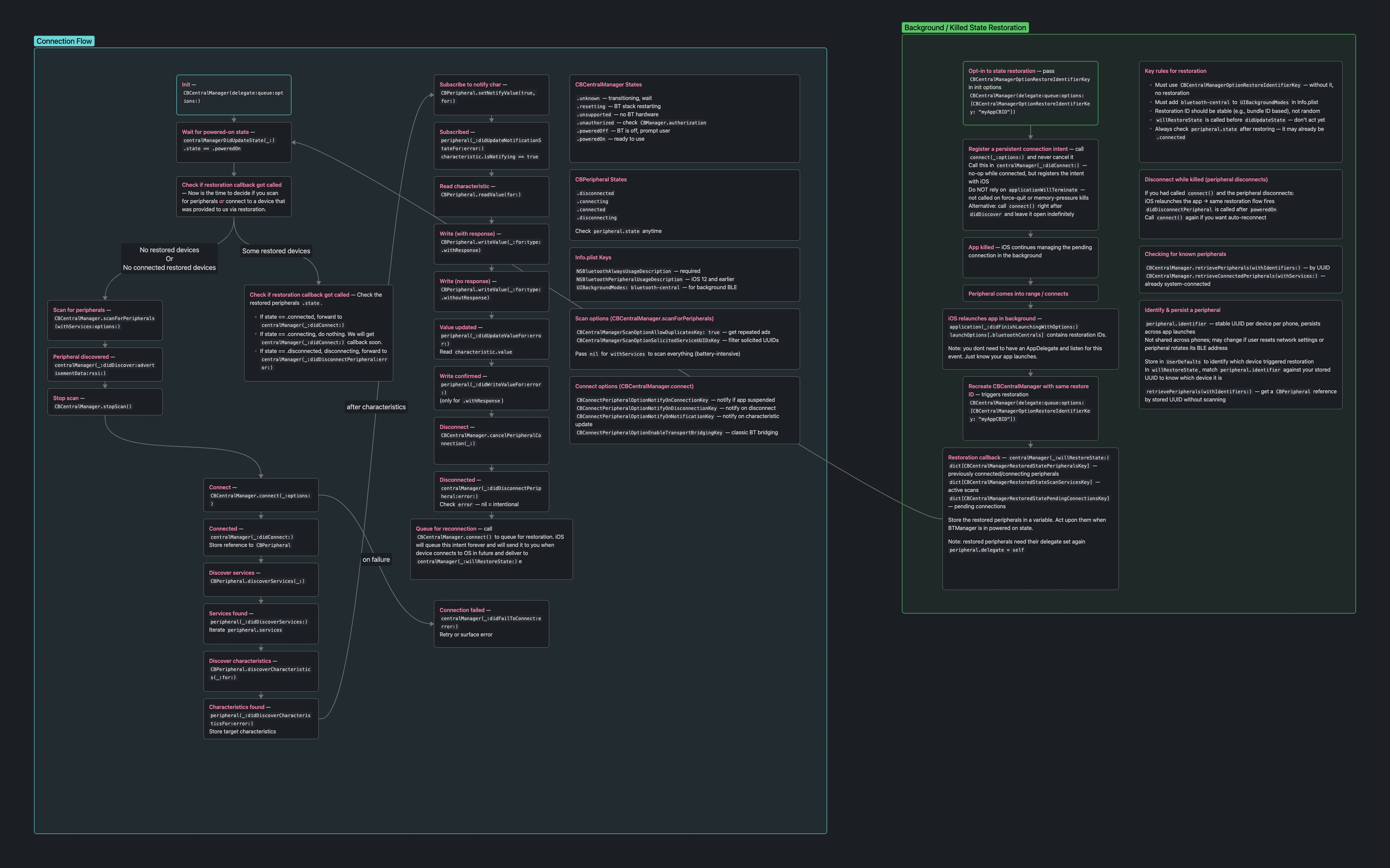
I think that the secret sauce that makes this workflow work for using ai as a way to learn something new is: the Obsidian document + the refinement loop. Obsidian docs are a great communication tool. It’s like how I find a wikipedia article easier to digest then a long text message with a friend (how agents tend to communicate).
Also, I think why I have failed with using ai agents in the past for learning something is that agents are good at answering a question of yours but horrible at writing a book. This refinement loop is a way for you to collect the dozens of answers the ai agent gives you and put it all together into a “book” that you can use as your reference now and into the future.
Nice little bonus with this workflow - I have exported my Obsidian documents to PDFs that I then share with co-workers/friends to teach them on the topic as well!
I suggest you give it a shot!